🛑 If Drive I/O is blocked...-Try these options to access or unblock it:
Option 1: For Google Workspace admins — whitelist & grant API access
Part 1: Whitelist the Extension for Installation
This removes the "Blocked by Admin" error in the Chrome Web Store.
- Navigate to your Google Admin console: https://admin.google.com
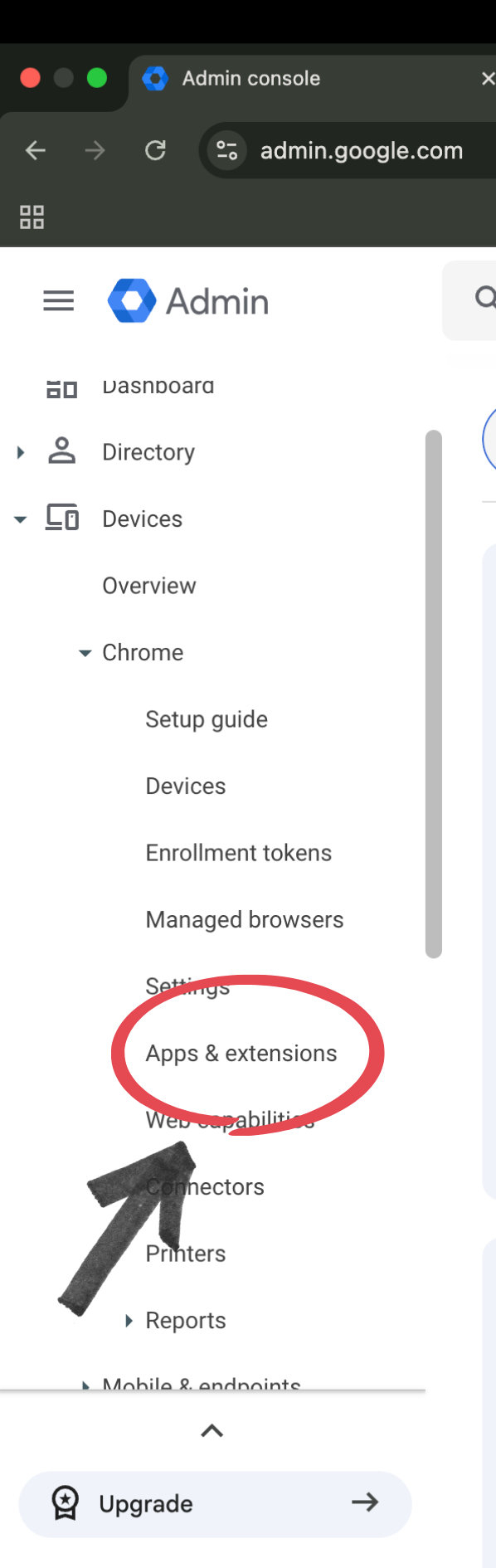
- Navigate to Devices → Chrome → Apps & extensions.
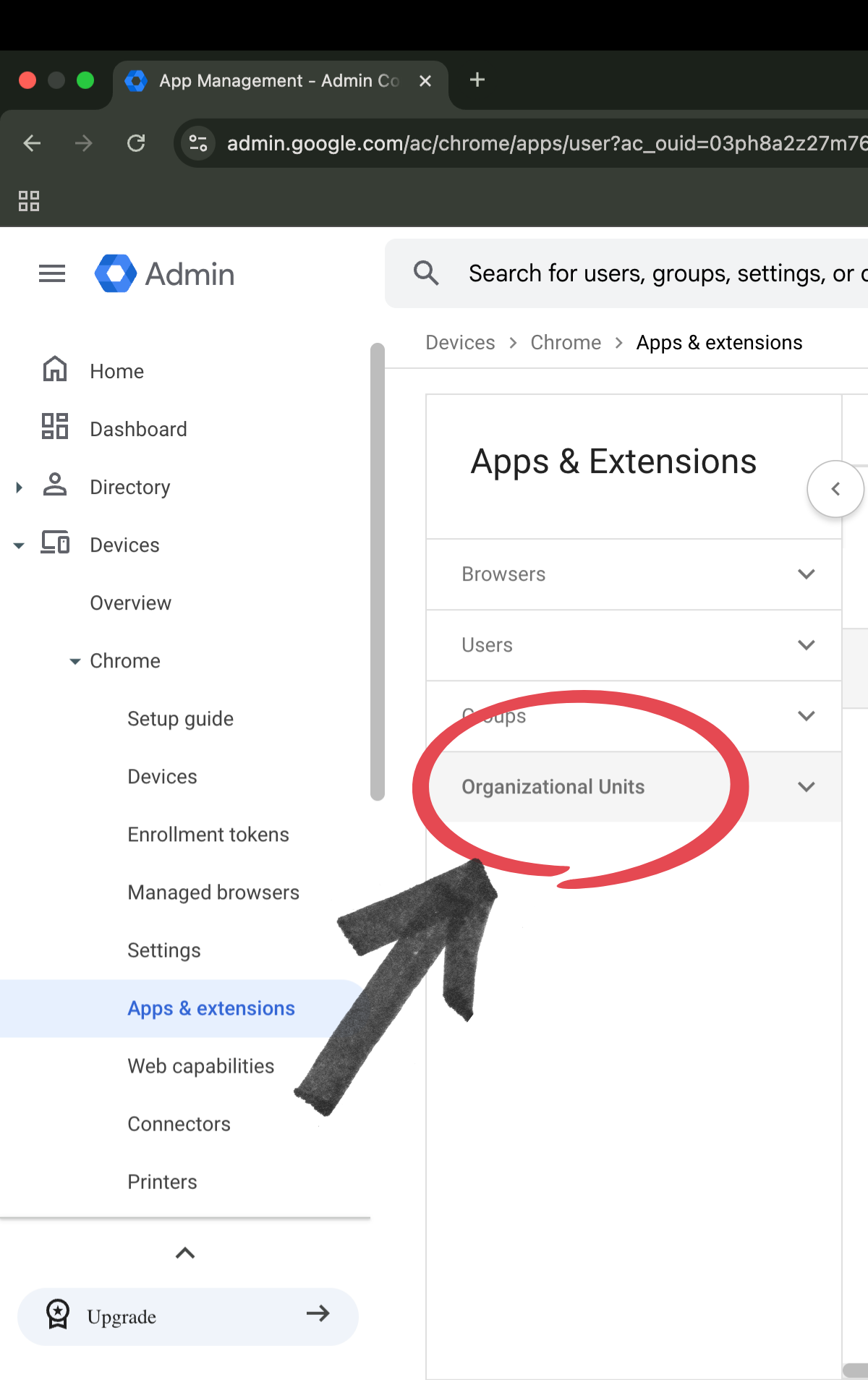
- Select Users & browsers.

- Select the Organizational Unit on the left that contains your users.
- Click the Yellow Plus (+) icon and select Add from Chrome Web Store.
- Search for Drive I/O, click Select, and change the "Installation policy" to Allow install.
- Click Save.
Part 2: Grant API Data Access
This ensures that once they download it, the extension has permission to access their Workspace data (like Gmail or Drive) without a "Policy Enforced" error.
- Navigate to your Google Admin console: https://admin.google.com
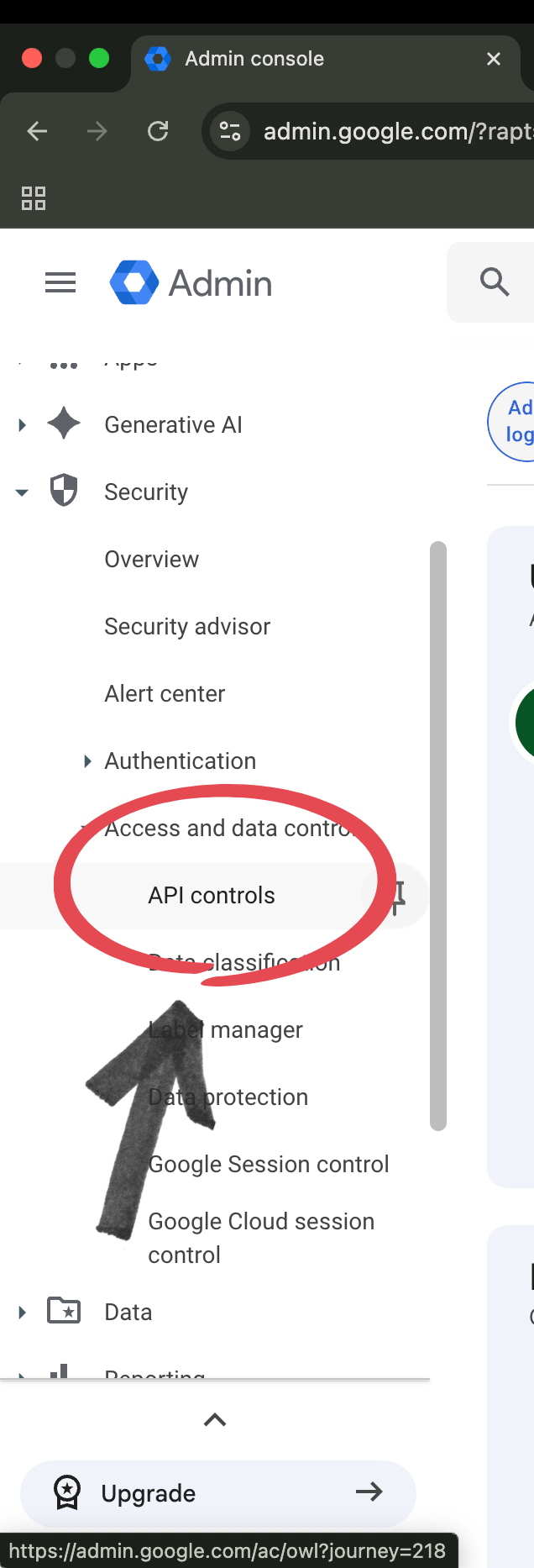
- Go to Security → Access and data control → API controls.
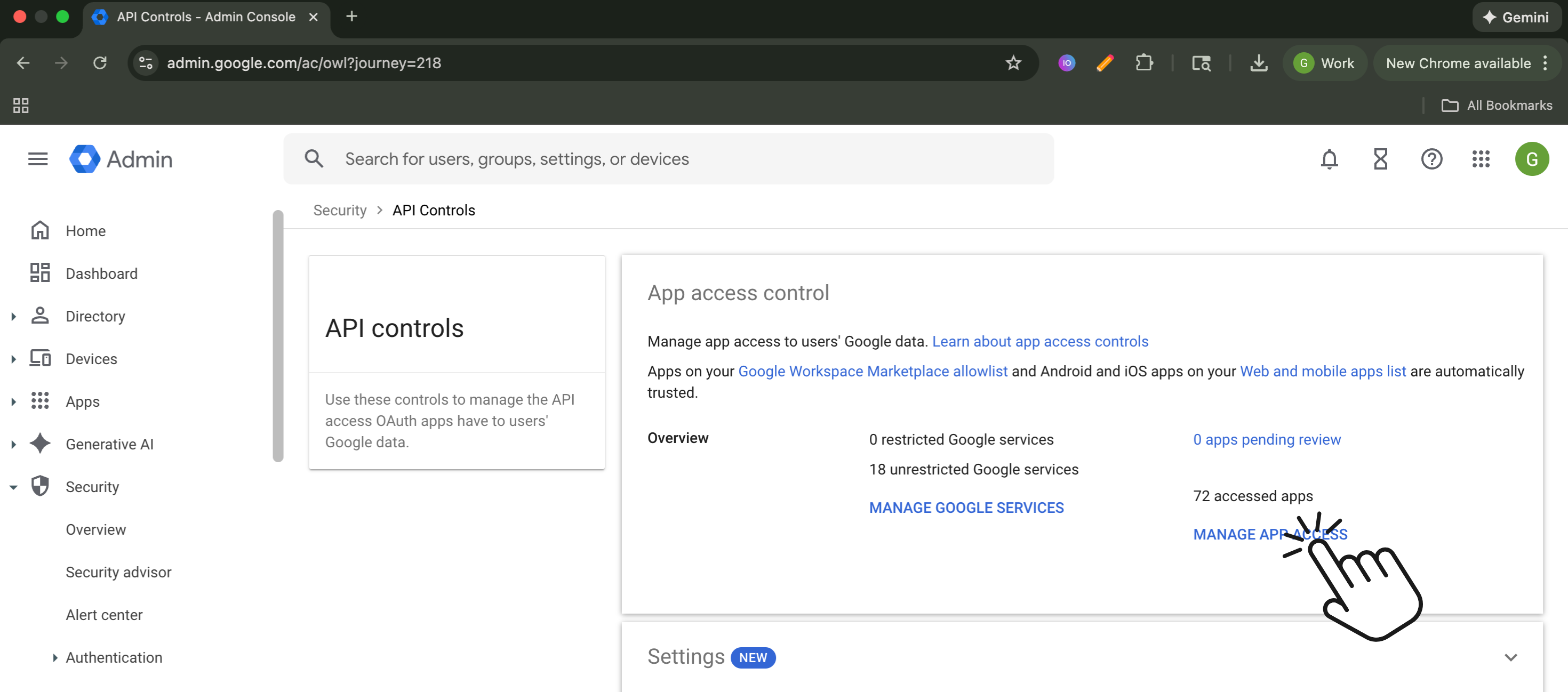
- Click Manage Third-Party App Access (or 'MANAGE APP ACCESS').
- Click Configure new app (or 'Add app').

- Enter Drive I/O into the 'Search for app' input field.
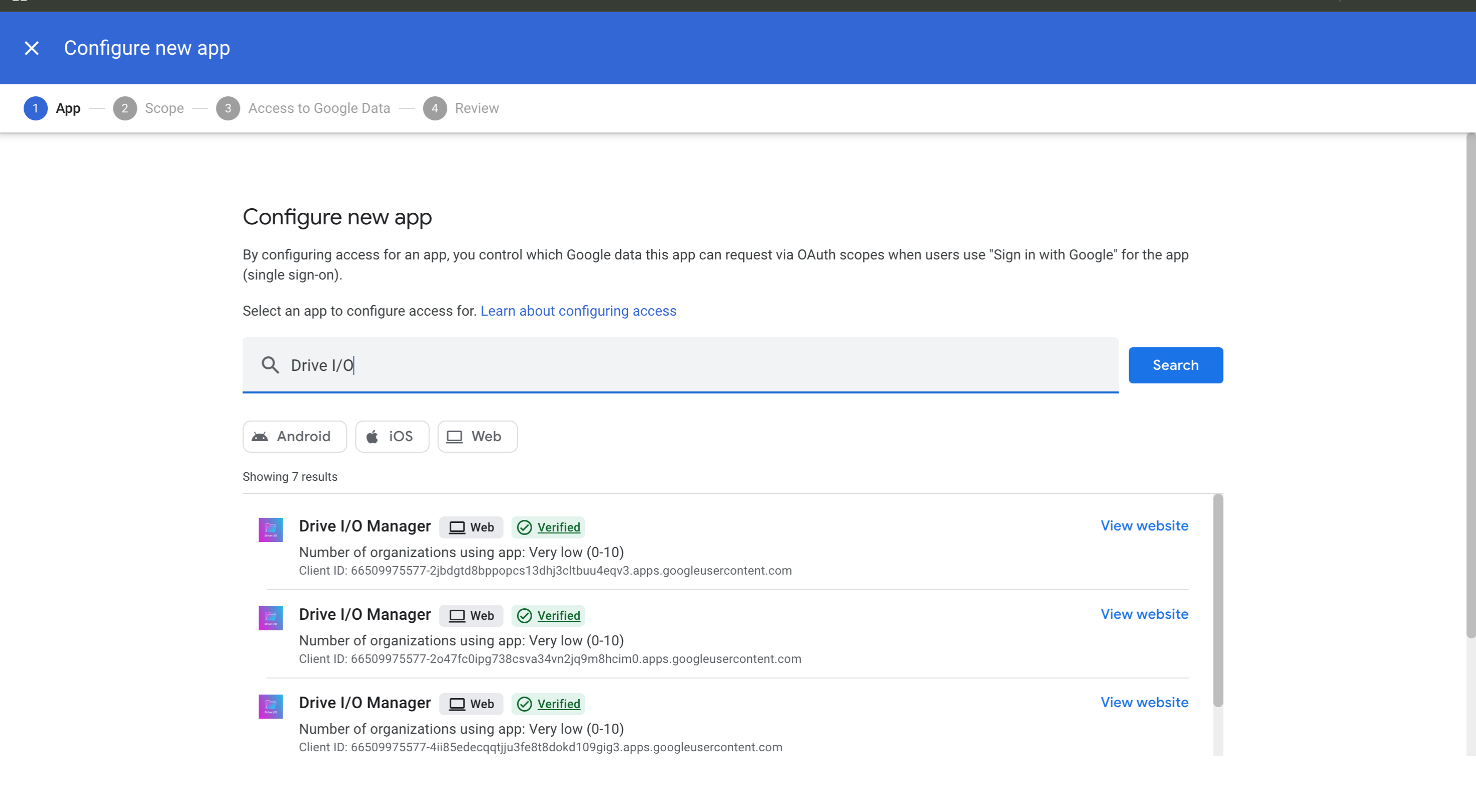
- On the Scope screen, select your organizational unit and click Continue.
- On the Access to Google Data screen, select Trusted and click Continue.
- Review your selections and click Finish.
Option 2: For non-admin users, but they can contact their admins:
Copy this link and send it to your admin about how to unblock Drive I/O for your workspace: https://www.driveio.io/tutorials-and-guides/unblocking-driveioIf you have any questions, please contact support at technerd@driveio.io.